
How to get your team's analytics and usage reports
Goal
Get usage and engagement analytics for your team — administrator metrics, usage reports, and engagement benchmarks.
Quick path
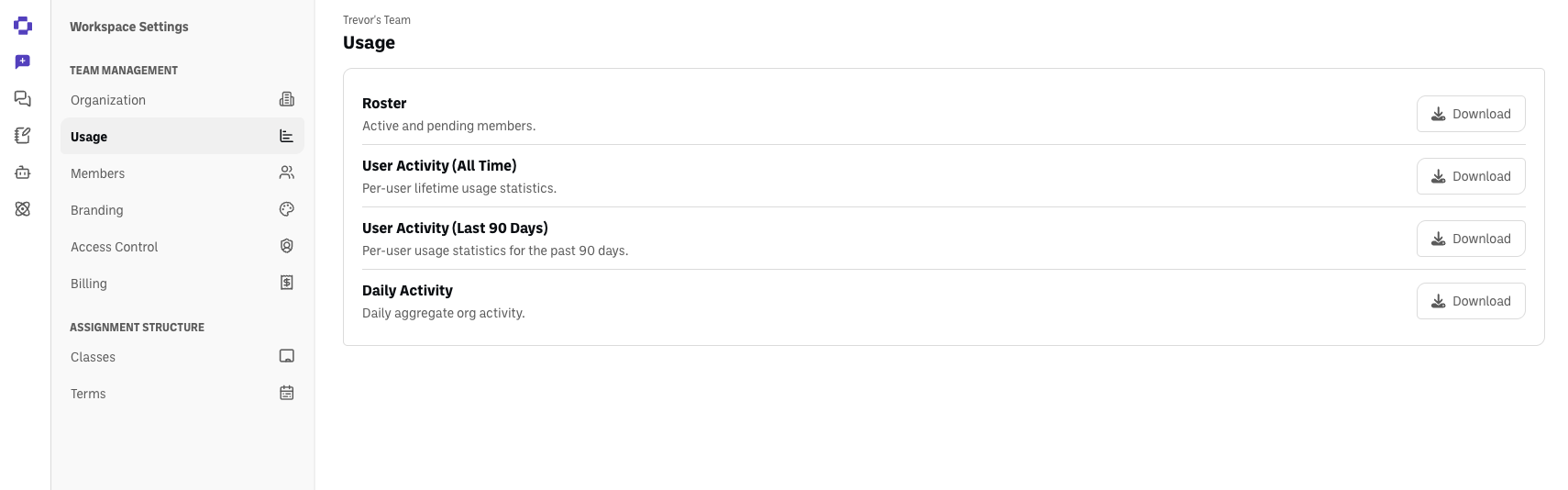
Go to Workspace Settings → Usage.
Download the CSV workbook you need.
Step-by-step
Open Usage. Go to Workspace Settings → Usage. You need to be a workspace Owner or Admin.
Pick the right workbook. Four CSV downloads are available on this page:
Roster — active and pending members.
User Activity (All Time) — per-user lifetime usage statistics.
User Activity (Last 90 Days) — per-user usage statistics for the past 90 days.
Daily Activity — daily aggregate org activity.
Mind the date range and the refresh time. Only User Activity (Last 90 Days) is limited to the past 90 days. User Activity (All Time) and Daily Activity cover your team's full history. Roster lists everyone who has been invited, but it is not live: it is rebuilt once a night from reporting data and includes changes through roughly 8 PM Eastern the previous evening. If you need the number of active and pending members right now, use Workspace Settings → Members instead.
Download. Click Download next to the workbook to get the CSV.
Good to know
This replaces the old request-based process — you no longer need to email our support team for standard usage, roster, or activity data. If you need something the four workbooks don't cover, your customer success contact can still help.
If the counts on the Members page and in the Roster download do not match, that is the refresh time, not an error. The Members page is live; the Roster covers changes through the previous evening. Both count people the same way ("Joined" in the Roster is the same as "active" on the Members page). For leadership reporting, use the Members page for current totals and the Roster for person-level detail, and note the Roster as "current as of the previous evening."
Classroom engagement is available separately
This article covers team-wide admin analytics. Per-class engagement is different and self-serve on its own: open an assignment's Teacher Dashboard to see each student's Chats, Exchanges, Comments, and Status, and use Insights for an AI read across the whole assignment (see How to review student AI conversations).
Questions?
Reach out through our contact form and we'll get back to you.