
How to review student AI conversations
Goal
See what your students did in an assignment — their chats, activity, and progress.
The Teacher Dashboard
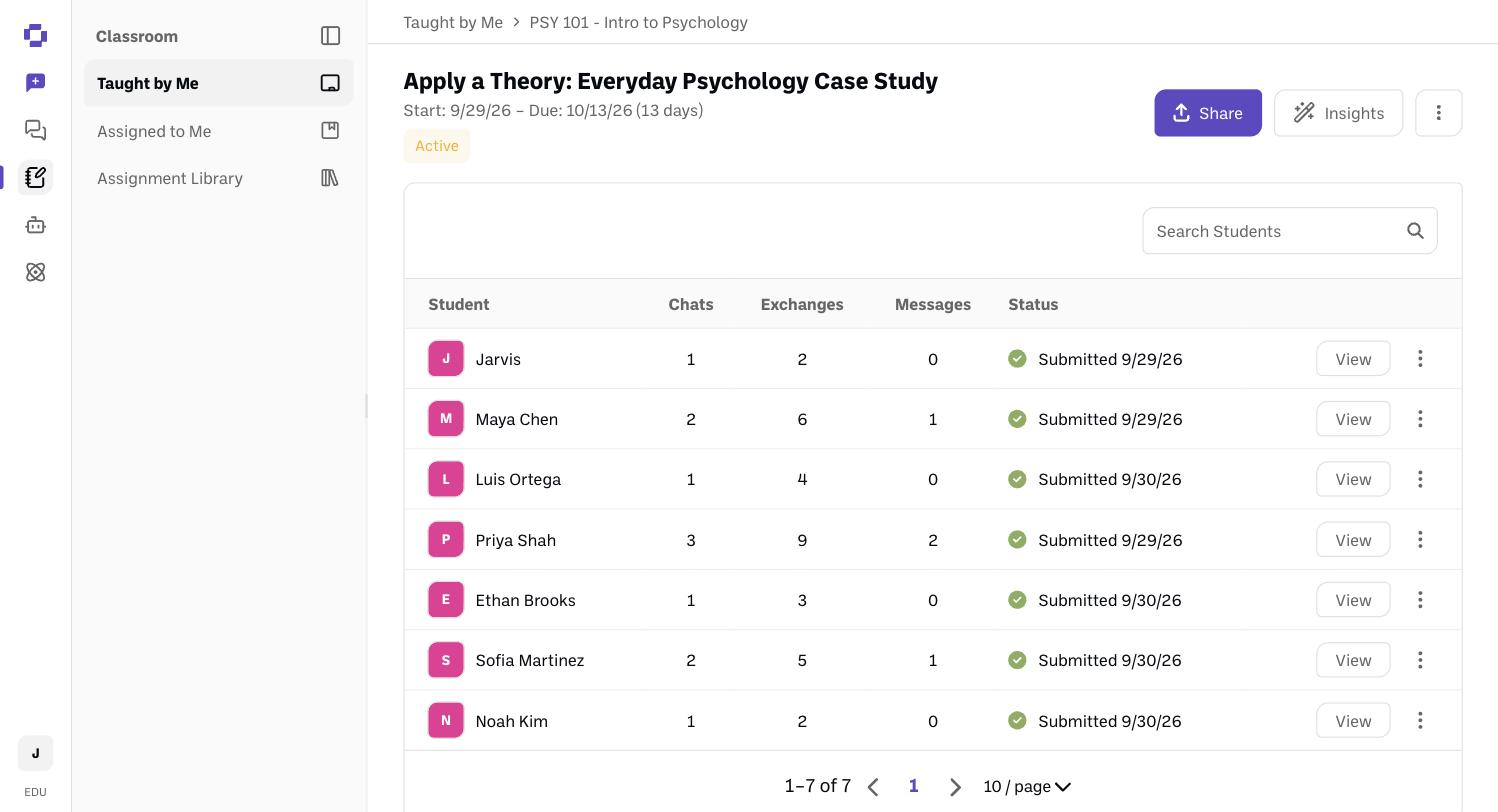
Each assignment has a Teacher Dashboard — a high-level view of all student activity.
Open the assignment's dashboard. From Taught by Me, open your class, then the assignment. You'll see a table of students, with each student's email under their name, plus Chats, Exchanges, Comments, and Status. Use the All statuses filter to show only Submitted, In-progress or Not started students, or Search Students to find someone. Share and Insights sit at the top-right.
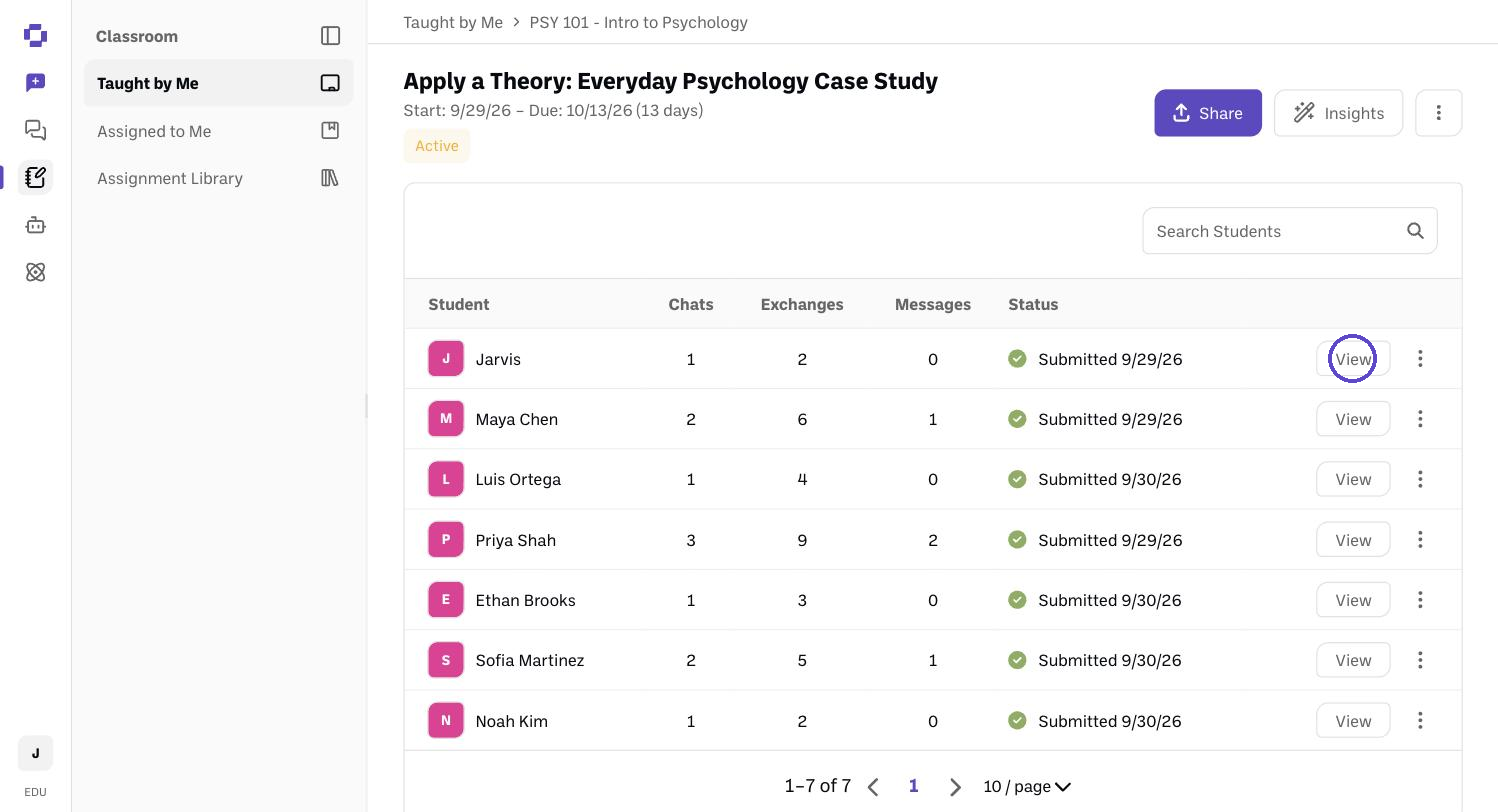
Click View on a student to open their full chat history.
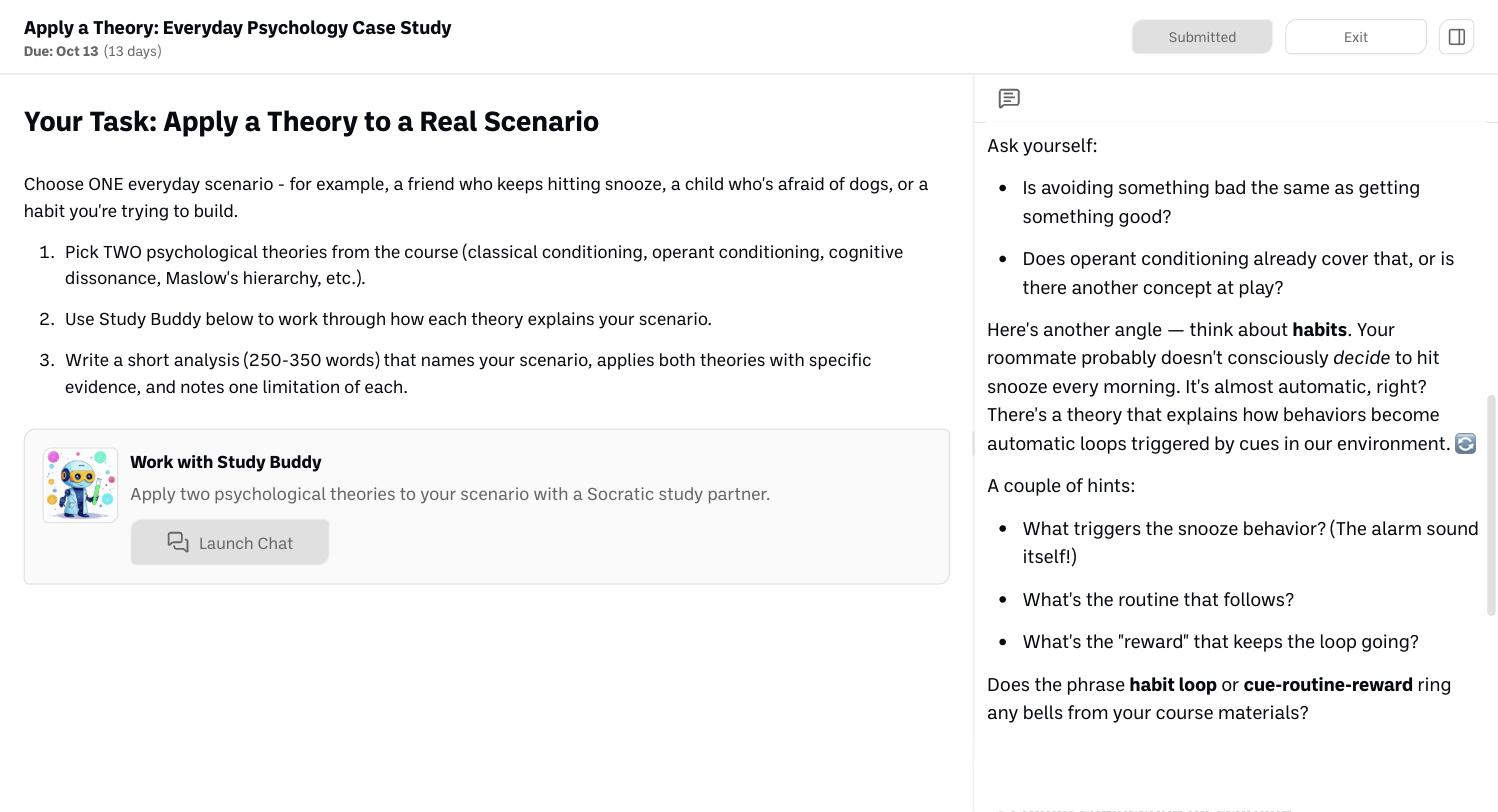
Their submission opens with the assignment on the left and every prompt and AI response on the right — exactly what the student did.
Jump in if you want. You can prompt or leave a message for a student right in their chat.
Per-student actions: use the ⋮ menu on a student's row to manage due-date extensions or unsubmit a submission.
Reviewing group assignments
On a group assignment, the dashboard shows each group as its own row: the group's name, how many students are in it, the group's status (for example, Not Started or Submitted), and a View button. Students who aren't in a group are listed below in an Ungrouped table, the same way as a regular assignment.
See the group's work. Click View on a group to open all of its shared chats. You and any Assistants can post in them.
See who contributed. Click the arrow on a group row to expand it. Each member gets their own line with Chats, Exchanges, and Comments, so you can see how much each person did, not just the group total.
Jump in. You can post in any group's chat, the same way you can in an individual student's.
Assessing group work. The group turns in one shared submission, and any member can submit it. Use the per-member counts and the chats themselves to judge individual contribution alongside the group's result.
Reopen or extend for a group. Once a group submits, a ⋮ menu appears on its row with Unsubmit submission, which reopens the work for the whole group, and Manage due date.
Ask Insights about the groups. Insights works on group assignments the same way it does on individual ones, once students have submitted.
To set up or change groups, click Manage groups above the student list. See How to change groups after setup.
Analyze the whole class with AI (Insights)
Want a holistic read instead of opening chats one by one? Insights lets you ask an AI about the whole assignment at once — it only references the conversations in this assignment.
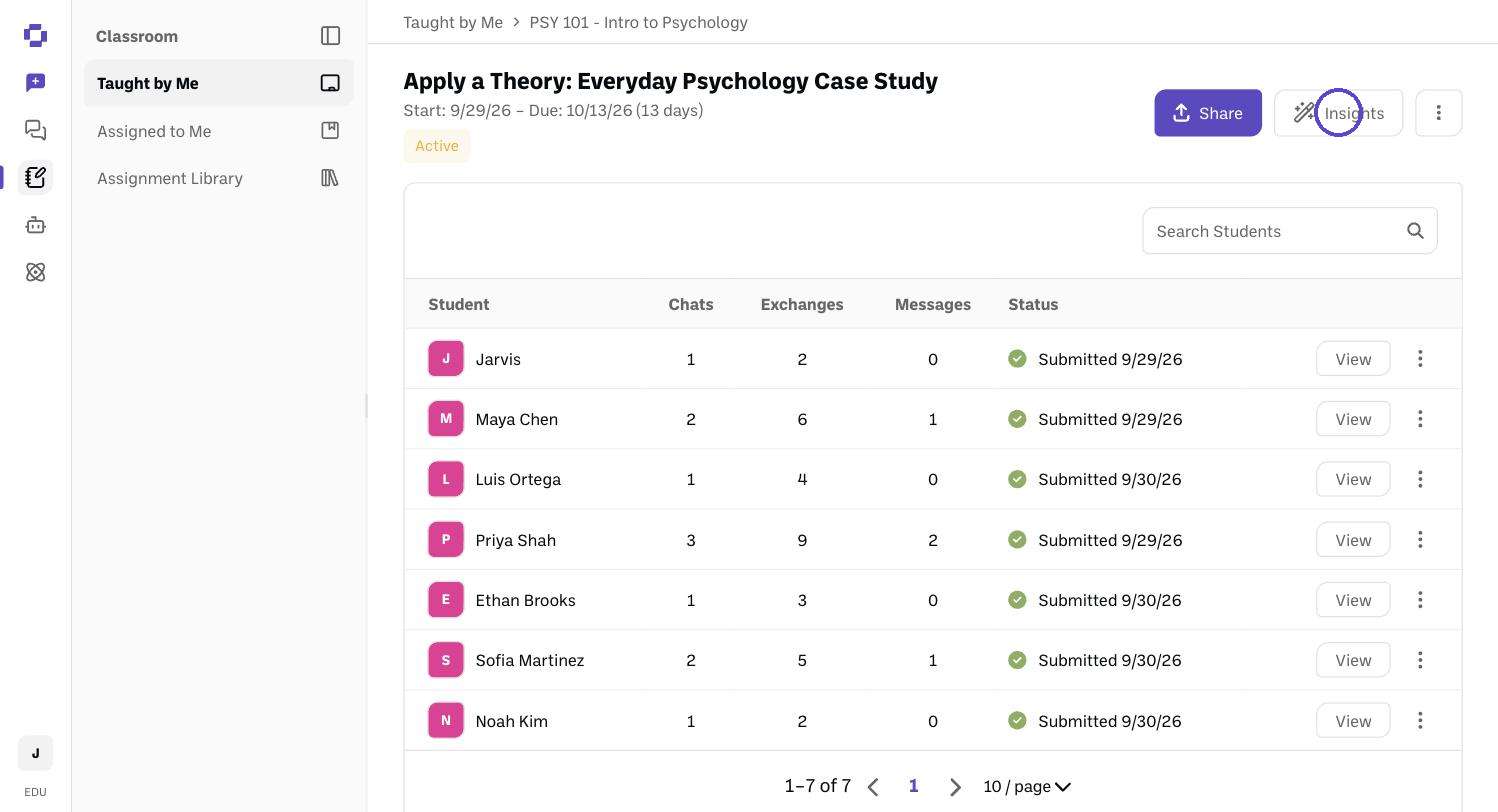
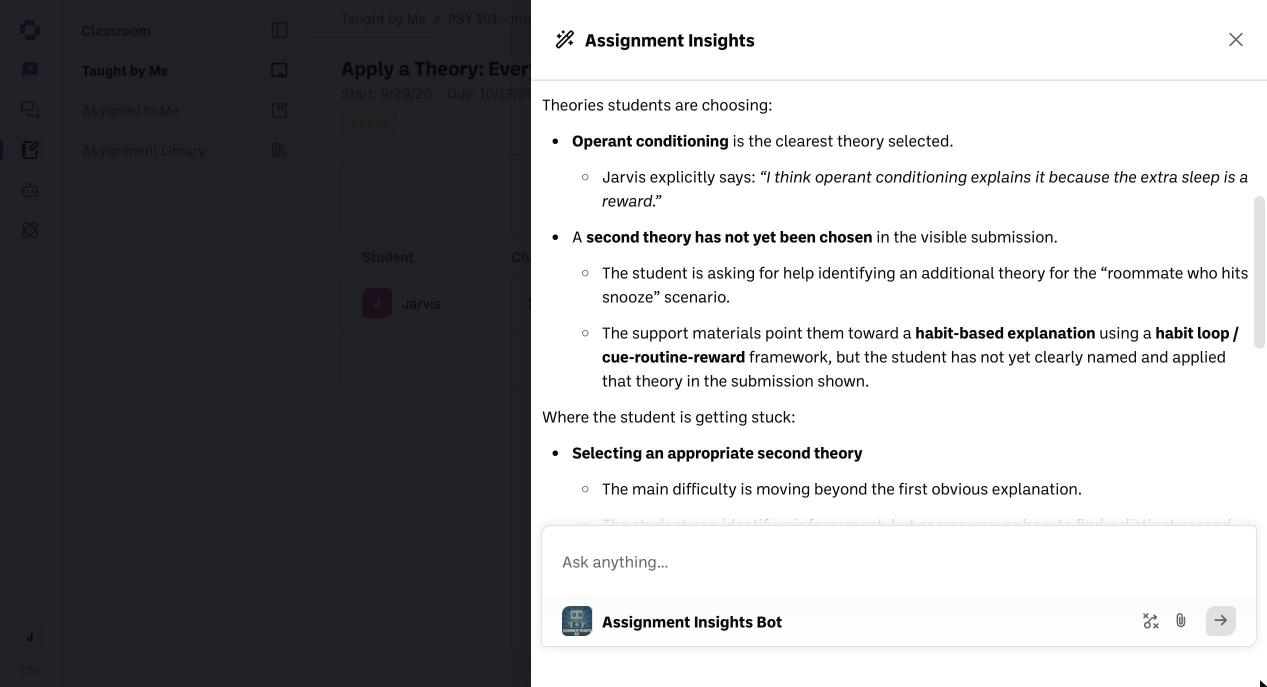
On the assignment dashboard, click Insights (top-right).
Ask the Assignment Insights bot a question — for example, "Tell me on a scale of one to ten how my students are doing." It reads across every student's conversation in the assignment and answers holistically (here it returned a 7/10, with reasons and per-area scores).
Because Insights is scoped to this assignment, you can ask things like "Which concepts are students struggling with?" or "Summarize the common mistakes" and get an answer grounded only in their actual work.
Good to know
You can watch students from the moment they start — they don't have to submit for you to see their work.
Academic integrity: if a student does the work in a personal chat instead of the assignment, the data shows which environment was used — personal-chat work isn't credited to the assignment.
Still stuck?
To pull transcripts out, see How to export assignment transcripts. Reach out through our contact form and we'll get back to you.