
How to submit assignments
Goal
Do your assignment in BoodleBox and submit it.
Quick path
Open the assignment under Assigned to Me and click Start Work.
Do the work in the assignment — read the instructions and chat with the assignment's AI bot.
Click Submit when you're done.
Step-by-step
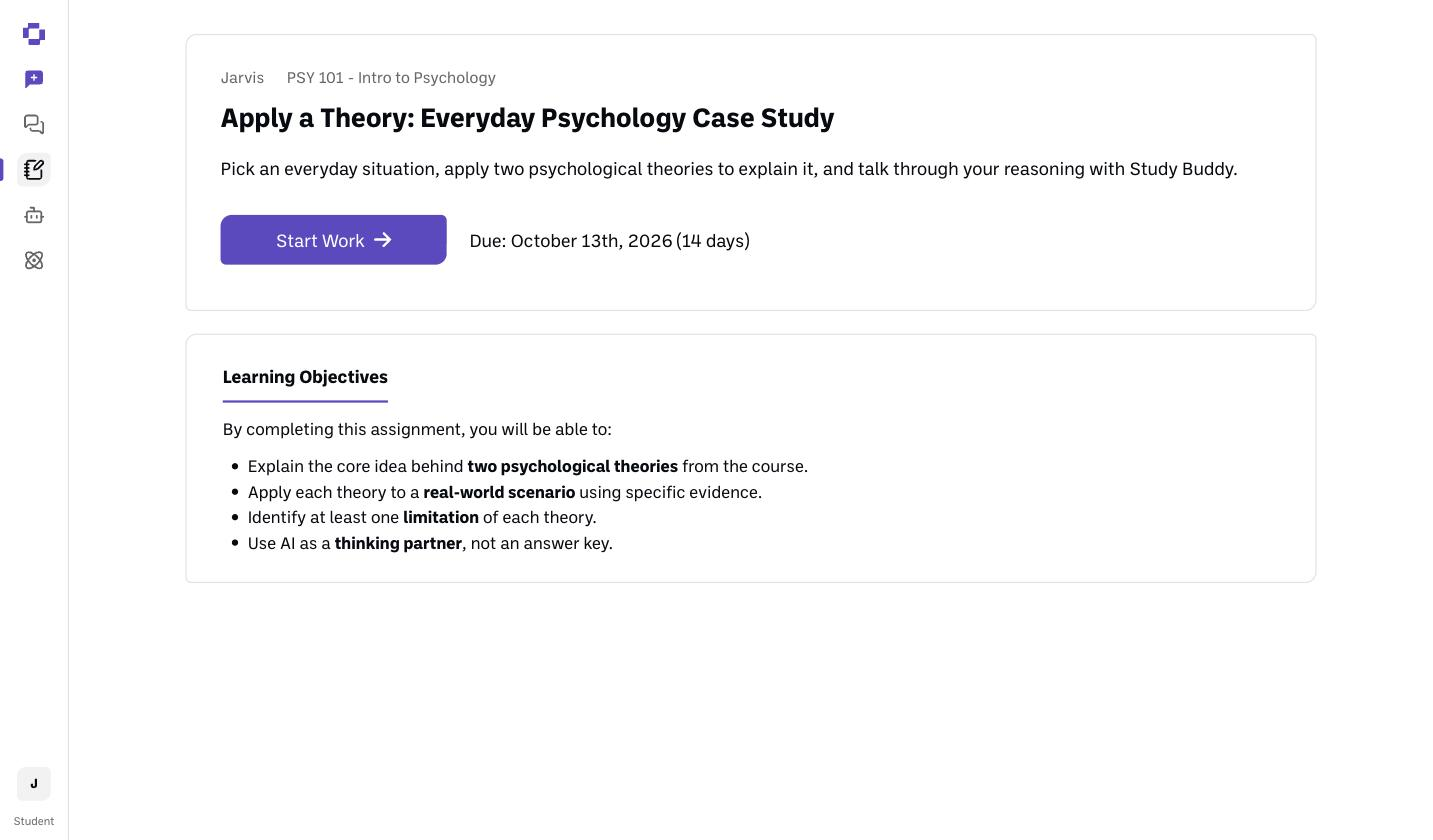
Open the assignment. Go to Classroom → Assigned to Me and open it. You'll see the title, the learning objectives, and the due date.
Click Start Work to open the assignment.
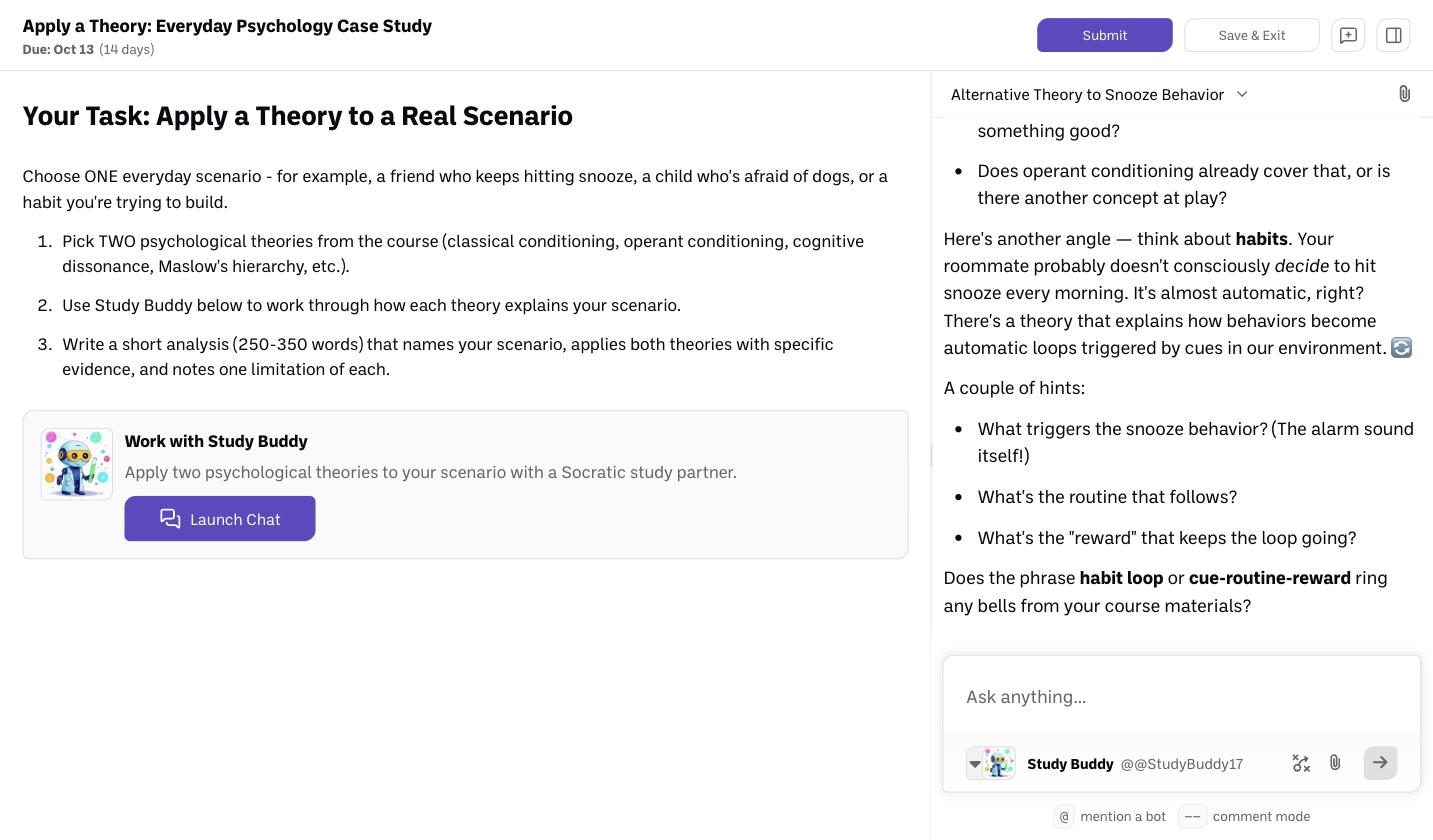
Do the work inside the assignment. The assignment opens with the instructions and materials on the left and an AI chat on the right. Many assignments give you a specific bot to work with (here it's CafeCoachAI) — your teacher may limit which bots and models you can use. Read the instructions, then work through the deliverables in the chat. The assignment's AI can see the directions and learning objectives, so you can ask it things like "What am I supposed to do?" (This works in assignment chats started on or after October 14, 2026.)
Use Save & Exit to step away and come back later — your work is saved.
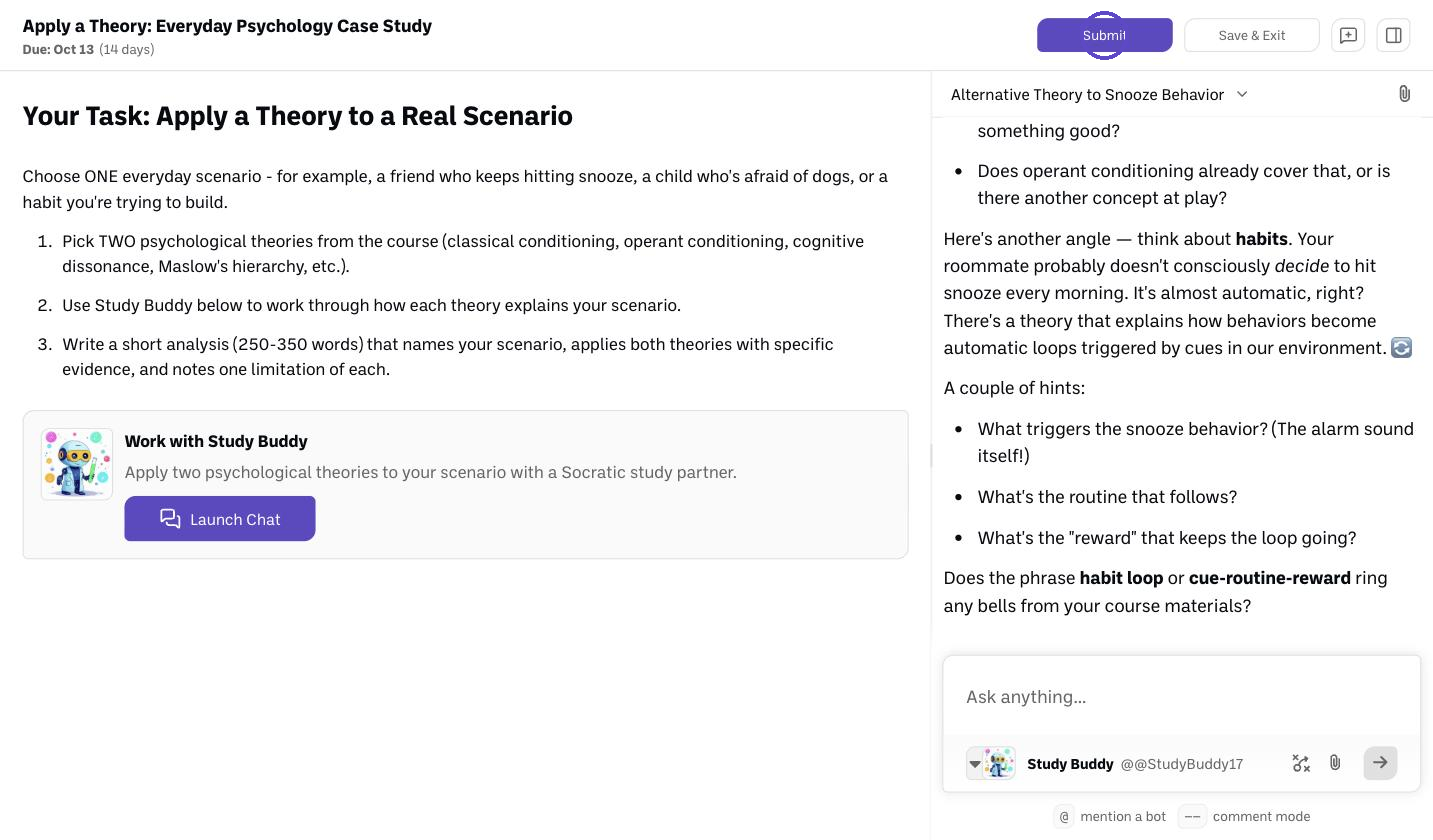
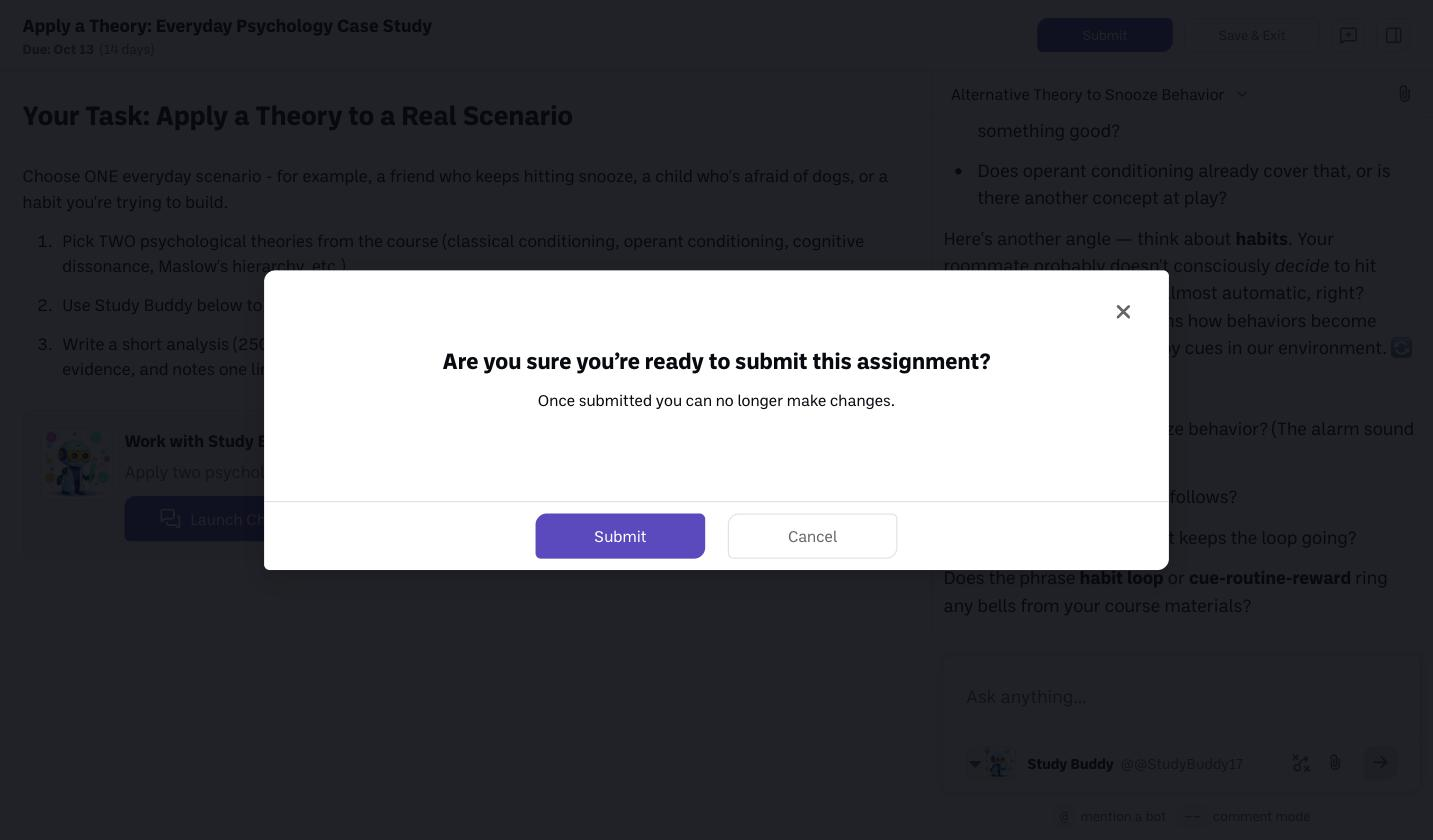
Submit. When you're done, click Submit at the top. Its status changes to Submitted.
Important: work in the assignment
BoodleBox can tell whether work was done in the assignment or in a personal chat — personal-chat work isn't credited to the assignment. Always do graded work inside the assignment itself.
Good to know
Your teacher can see your activity from the moment you start — you don't have to submit for them to see your work.
Group assignment? Anyone in your group can click Submit, and it submits for the whole group. See How to work on a group assignment.
Still stuck?
Ask your teacher, or reach out through our contact form and we'll get back to you.