
Understanding team roles and permissions
Goal
Know the difference between the team roles so you assign the right one.
The roles
Owner — the account owner; full control of the team.
Admin — can invite people and manage seats, plus everything a Member can do. Give this to people who help run the team.
Member — standard access; cannot invite others or manage seats.
Which to assign
Default to Member for most people.
Give Admin only to those who need to manage the roster, seats, or team settings.
You set a person's role when you invite them, and you can change it later from Members (see How to manage your team & users).
Secondary roles (edu workspaces)
On top of Owner/Admin/Member, edu workspaces can layer on secondary roles that add or restrict privileges for Members: Faculty, Staff, and Student.
Set from Workspace Settings → Members: click the + in that person's Secondary Roles column and pick Faculty, Staff, or Student.
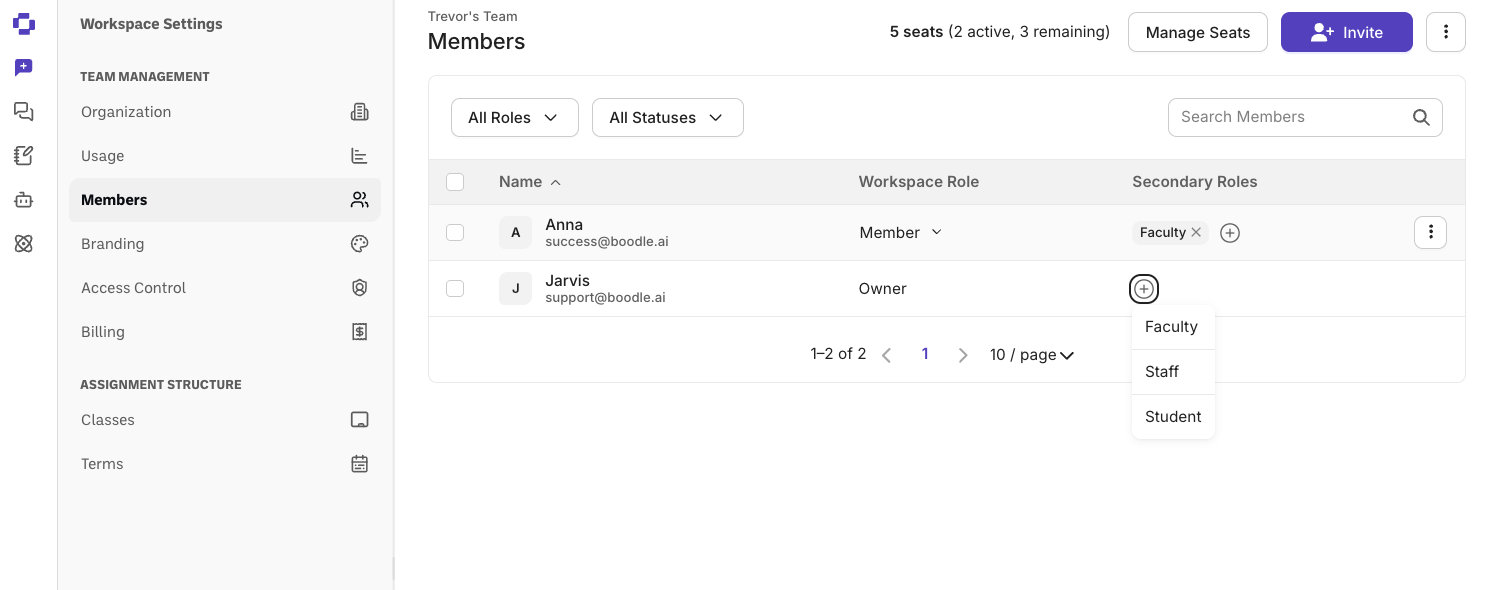
Student is a hard limiter — someone with the Student secondary role can't be switched to a different user type within the workspace. This closes the gap where students were sometimes landing in a Workforce-type account by mistake.
Secondary roles don't come through SSO yet — they're set manually inside BoodleBox.
Scoped to edu workspaces for now; not yet available for non-edu workspaces (e.g. legal, business).
Long-term, admins will be able to toggle secondary role groups on or off per workspace — not available yet.
Note: classroom roles are separate
Roles inside a class (Student, Teacher, Assistant, External Student) are different from these team roles — see Understanding classroom roles in BoodleBox. Admins do carry one classroom-level privilege from their team role: they can see that a class exists and who's enrolled in it, account-wide — not just classes they created themselves. They can't see student usage or the assignments themselves; that stays with the class's own Teachers and Assistants.
Questions?
Reach out through our contact form and we'll get back to you.